Locating Links #2: The Macro Strikes Back
This article revisits one of the early topics – those pesky external links, this time considering how to list them in an Excel worksheet. By Liam Bastick, Director with SumProduct Pty Ltd.
Query
Is it possible to list all of the formula links in a model? I want to check they are working correctly and that there are no ‘accidental’ linkages to other Excel files.
Advice
Regular readers may notice this is a similar question to the article discussing how to identify ‘phantom’ links. This article discussed finding all manner of external links – not just formula links – but only considered how to identify them.
To recap:
Formula Links
When a file contains formula links, it is relatively straightforward to hunt them out:
- Close all workbooks except the active workbook with the links in;
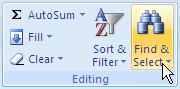
- In Excel 2003 / earlier, on the Edit menu, click ‘Find’; in Excel 2007 and later versions, click on ‘Find & Select’ of the ‘Editing’ section of the ‘Home’ tab – or simply use Ctrl + F in all versions;
- Click ‘Options’;
- In the ‘Find’ what box, enter “[” (with no inverted commas). These square brackets will always appear in formula links;
- In the ‘Within’ box, click ‘Workbook’;
- In the ‘Look In’ box, click ‘Formulas’;
- Click ‘Find All’;
- In the box at the bottom, look in the ‘Formula’ column for formulas that contain “[”; and
- To select the cell with a link, select the row in the box at the bottom.
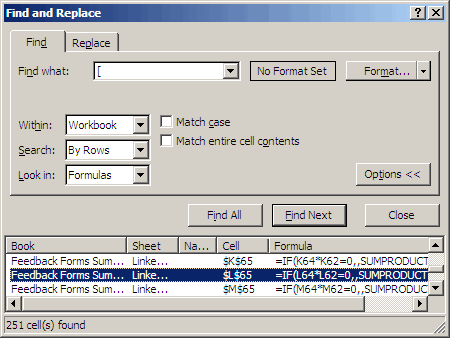
The problem here is that our reader wants the list in the bottom box, i.e. the 251 links displayed at the bottom of the above illustration. This requires writing VBA code. Before this though, we need to make sure that the code will run.
Checking Excel’s Security Settings
Because macros may execute all sorts of nasty code, Excel’s default setting is set so that macros will not run automatically. To ensure the macro below will work, you will first need to check / amend Excel’s security settings, viz.
Excel 2003 and earlier
- Call up the ‘Options’ dialog box (Tools -> Options or ALT + T + O);
- Select the ‘Security’ tab;
- In the ‘Macro security’ section, click on the ‘Macro Security…’ button;
- Ideally, select / confirm the setting as ‘Medium’. This means you can choose whether or not to run macros; and
- Excel may have to be closed and re-opened for these changes to be adopted
Excel 2007 and later
- Click on the Office Button;
- Click on ‘Excel Options’ (ALT + T + O is the equivalent of these first two steps);
- Select ‘Trust Center’ from the left hand columnar list;
- In the ‘Microsoft Office Excel Trust Center’ section, click on the ‘Trust Center Settings…’ button;
- Select ‘Macro Settings’ from the left hand columnar list (if the ‘Developer’ tab is displayed on the Ribbon, ALT + L + AS will get you to this point immediately); and
- In the ‘Macro Settings’ section, select ‘Enable all macros’ (note this is a slightly more dangerous option than its Excel 2003 counterpart)
Adding the Macro
I am not a great fan of macros. I believe them to be ‘black box’ items and dangerous in the wrong hands. They should only be used as a last resort. However, this is one such instance.
Adding a macro that is already scripted (see below) requires access to the Visual Basic Editor (ALT + F11). Typically, this will be displayed as follows:
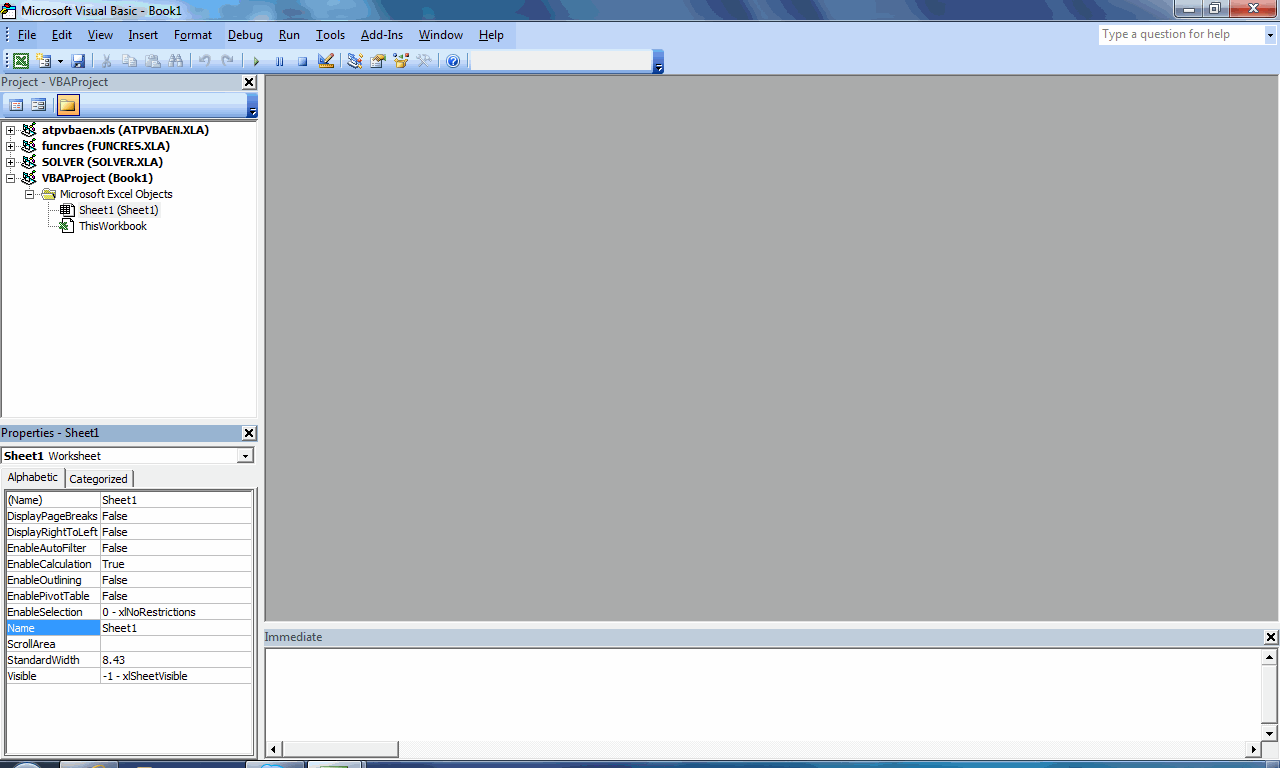
Not all four windows may be displayed and the grey section may appear white. The important thing is to ensure the Project Explorer Window (below) is visible:
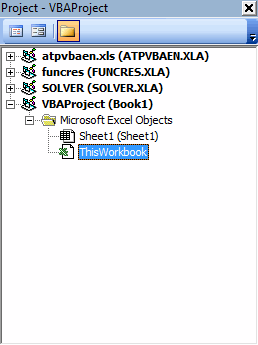
If it is not visible, simply invoke the keyboard shortcut CTRL + R (or else go to View -> Project Explorer).
Depending upon the files open and add-ins available in Excel, the contents may differ significantly from the illustration above. The key point is to locate the file with the external links (in our example, the imaginatively titled ‘Book 1’) in VBAProject and expand the selection in order to double-click on ‘ThisWorkbook’:
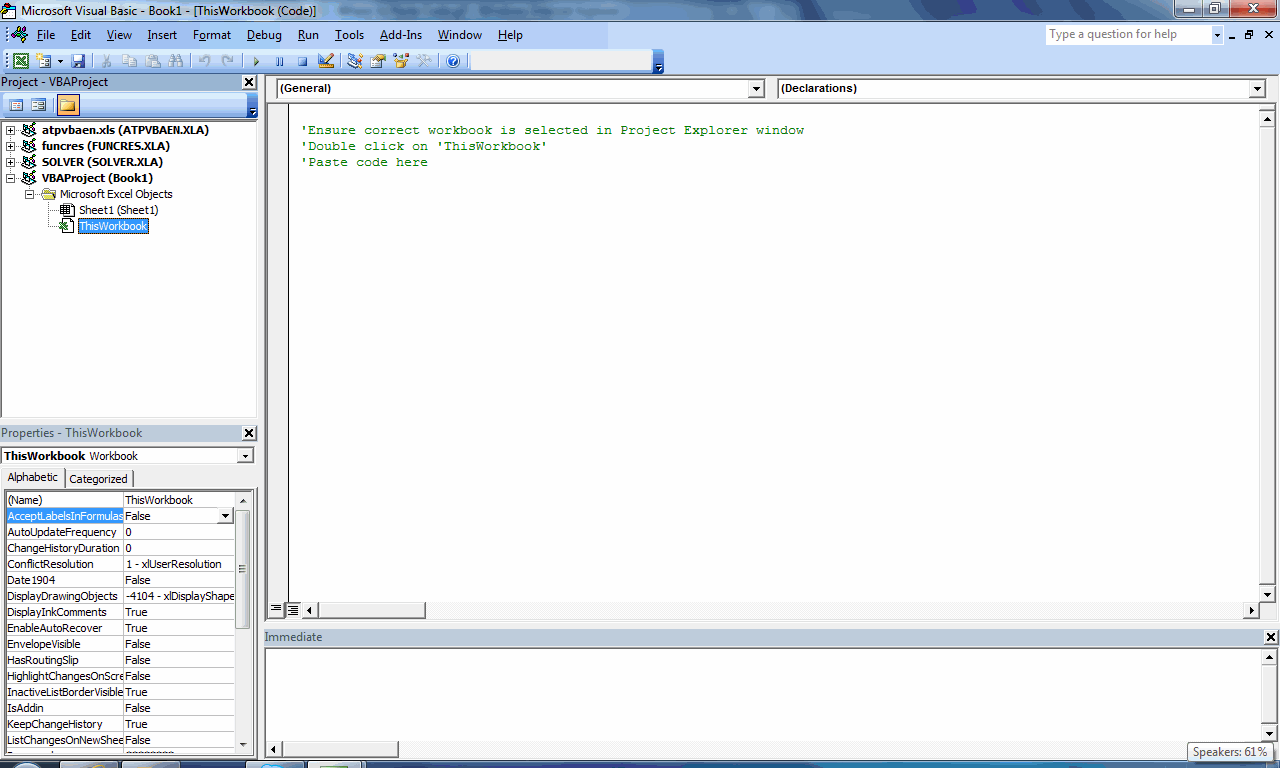
The graphic above shows where to paste the code, i.e. into the Code window (top right hand window).
Next, paste in the following code (using the attached Notepad file):
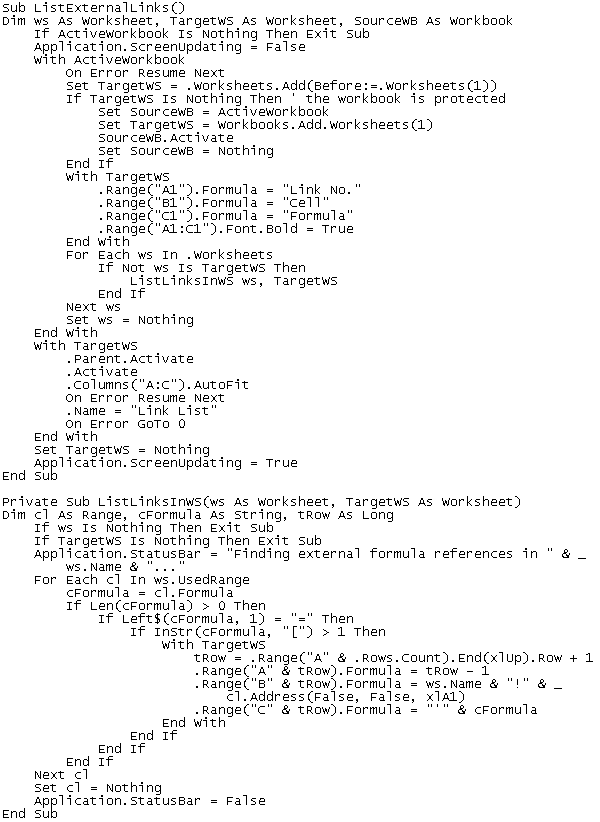
To run this code, exit the Visual Basic Editor (simply close the main window) and then:
Excel 2003 and earlier
- Go to Tools -> Macro -> Macros… (ALT + F8)
Excel 2007 and later
- Ensure the ‘Developer’ tab on the Ribbon is visible as follows;
- Click on the Office Button;
- Click on ‘Excel Options’ (ALT + T + O is the equivalent of these first two steps);
- Select ‘Popular’ from the left hand columnar list;
- In the ‘Top options for working with Excel’ section, check that the third check box ‘Show Developer tab in the Ribbon’ is ticked;
- Click ‘OK’;
- Go to the ‘Developer’ tab in the Ribbon;and
- In the ‘Code’ group, click on ‘Macros’
- Alternatively, ignore all of the above and simply use the keyboard shortcut ALT + F8
This will then bring up the following dialog box:
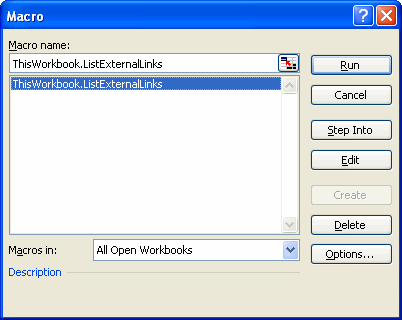
Select the macro ‘ThisWorkbook.ListExternalLinks’ macro and click on the ‘Run’ button. This will execute the macro and display all external formula links.
Classic Gotcha
For readers using Excel 2007 and subsequent versions, be careful when saving this file. It is safest to use the ‘Save As…’ option:
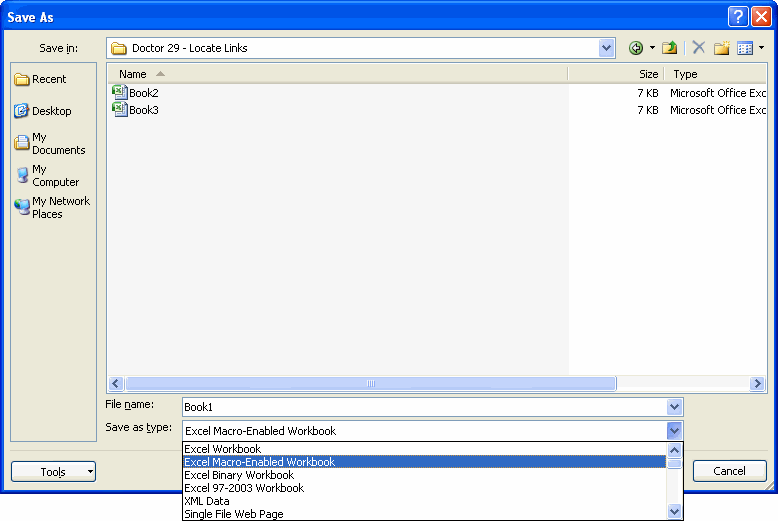
The default ‘Save as type:’ setting for Excel 2007 onwards is ‘Excel Workbook’, but this is a macro-disabled (and moreover, removed) setting. To retain the macro in the saved file, ensure that either the ‘Excel Macro-Enabled Workbook’ or, for better compatibility with earlier incarnations of Excel, ‘Excel 97-2003 Workbook’ type is selected.