Links – Phantom of the Operator?
This article considers how to locate and remove unintended links in spreadsheets. By Liam Bastick, director with SumProduct Pty Ltd.
Query
Whenever I open certain Excel workbooks, I get a message asking if I want to update the links. I’m unsure how to search my workbook to find out what these links are. Please advise.

Advice
In this instance, the user wishes to find the links and decide individually whether they should be retained or removed. (If the intention is merely to remove them, you may wish to consider the free Microsoft add-in, Delete Links Wizard: http://support.microsoft.com/kb/188449 .)
The first step to take is to ascertain what type of links you have. One way of doing this is to select Edit–>Links in Excel 2003 / earlier, or use the Connections section of the Data tab (see graphic below) in Excel 2007. Alt + E + K, the keyboard shortcut, works in all versions of Excel in any case.
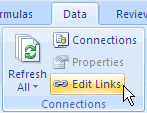
This command will not be available in all instances. If it is, you will probably have Formula Links. If Edit–>Links is available, a dialog box will appear.
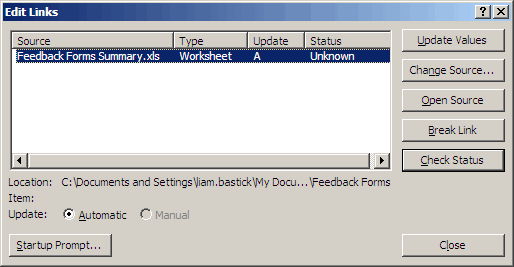
There may be more than one file linked. Upon inspection, you may notice that one or more file may simply be an older version of the active workbook. If so, the active workbook can be substituted for each file in turn by clicking on the Change Source button (Alt + N) and following the directions. This will remove these referencing errors.
Some files you may not have access to and may cause errors if the file is inadvertently updated. By selecting the Break Link button, these links can be replaced by their current values (N.B. This action cannot be undone – you may wish to save the file beforehand in order to rectify errors).
Formula Links
If you do have formula links, it is relatively straightforward to search for these links:
- Close all workbooks except the active workbook with the links in
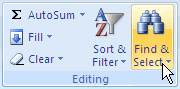
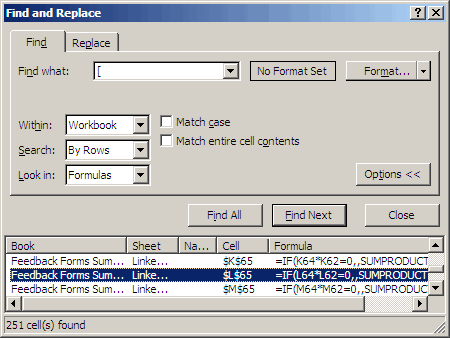
- In Excel 2003 / earlier, on the Edit menu, click Find; in Excel 2007, click on Find & Select of the Editing section of the Home tab – or simply use Ctrl + F in all versions
- Click Options
- In the Find what box, enter [
- In the Within box, click Workbook
- In the Look In box, click Formulas
- Click Find All
- In the box at the bottom, look in the Formula column for formulas that contain [
- To select the cell with a link, select the row in the box at the bottom.
Other “Phantom” Links
There are other types of links, often referred to as “phantom links” due to being difficult to locate, compared to formula links. But once you know, it’s easy!
Name Links
This is probably the most common cause of phantom links: names that reference ranges in other workbooks.
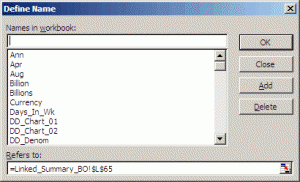
Using Define Name in Excel 2003 / earlier or Name Manager in Excel 2007 (simplest method of calling this dialog box: Ctrl + F3), we can get a list of all the names in the workbook:
Define Name (Excel 2003 and Earlier)
Name Manager (Excel 2007)
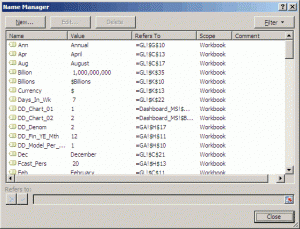
By scrolling through the list of names and examining the Refers To section (a little cumbersome prior to Excel 2007, admittedly), names referring to other workbooks or containing erroneous references such as #REF! can be amended or deleted.
Chart Links
If you have charts in your workbook, there are various places where hidden links could be lurking. Click on each text box or title and examine the formula bar for references to other workbooks.
Further, click on each data series in the chart and examine the SERIES formula for external references. These links can be removed by copying (as values) the data located into the active workbook.
Object Links
External references can be attached to objects also. The simplest way of reviewing objects in a workbook is to use the highly underrated Go To–>Special function (simply use the F5 function key and then click Special). In the next dialog box, simply select Objects, then click OK.
Go To Dialog Box
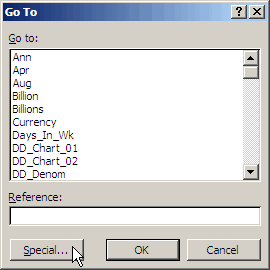
Go To Special: Selecting Objects
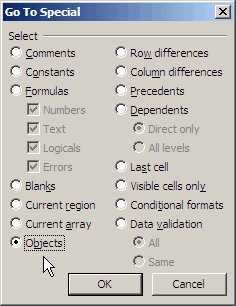
By pressing the Tab key and examining the formula bar, each object can be reviewed in turn for external references.
And Finally…
Upon completion of the above process, unless your workbook includes web queries containing parameters, all links should now have been reviewed. If the intention was to remove all such links, simply save and reopen once all deletions have been made.
If you have a query for this section, please feel free to drop Liam a line at liam.bastick@sumproduct.com or visit the website www.sumproduct.com